 PicForge – Batch Image Converter & CompressorWindows app
Batch image converter and compressor for Windows
Convert HEIC, RAW, AVIF, PDF and more to JPG, PNG or WEBP. Shrink and resize photos in bulk, right on your PC. Nothing is uploaded.

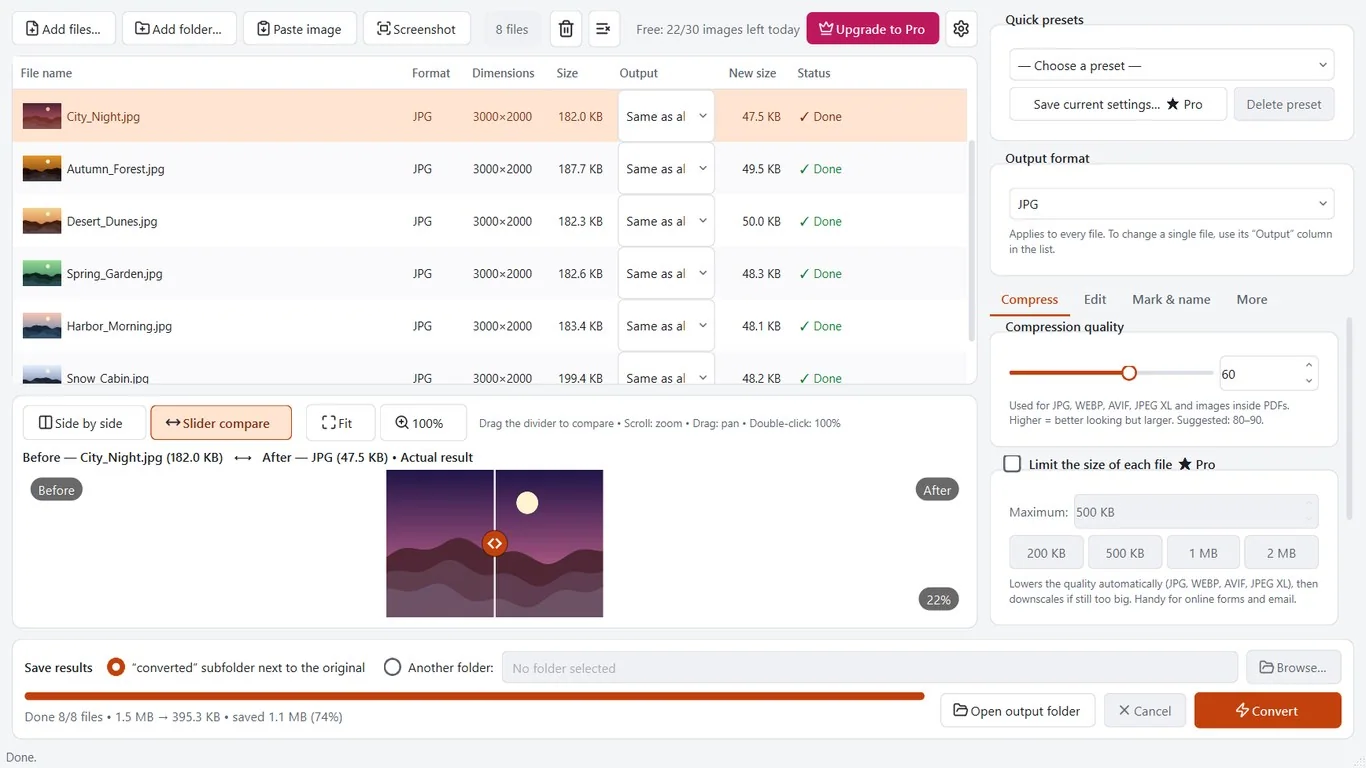
Everything you need to convert photos in bulk
Lots of formats in and out
Open JPG, PNG, WEBP, HEIC, AVIF, JPEG XL, SVG, PDF and camera RAW. Save as JPG, PNG, WEBP, AVIF, JXL, GIF, BMP, TIFF, ICO or PDF.
Compress and resize in one go
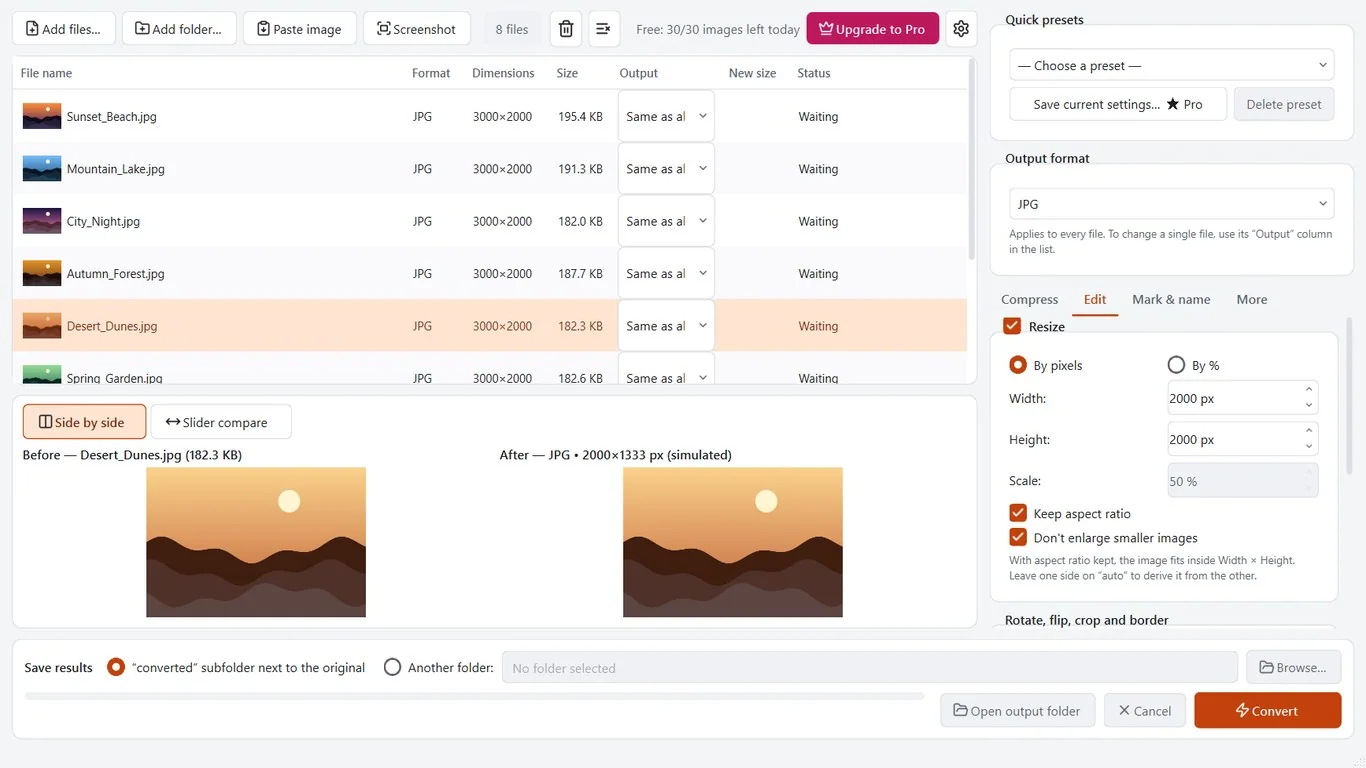
Set quality, resize by pixels or percent, rotate, flip and crop to a ratio. Strip EXIF data such as GPS before you share.
Ready-made presets
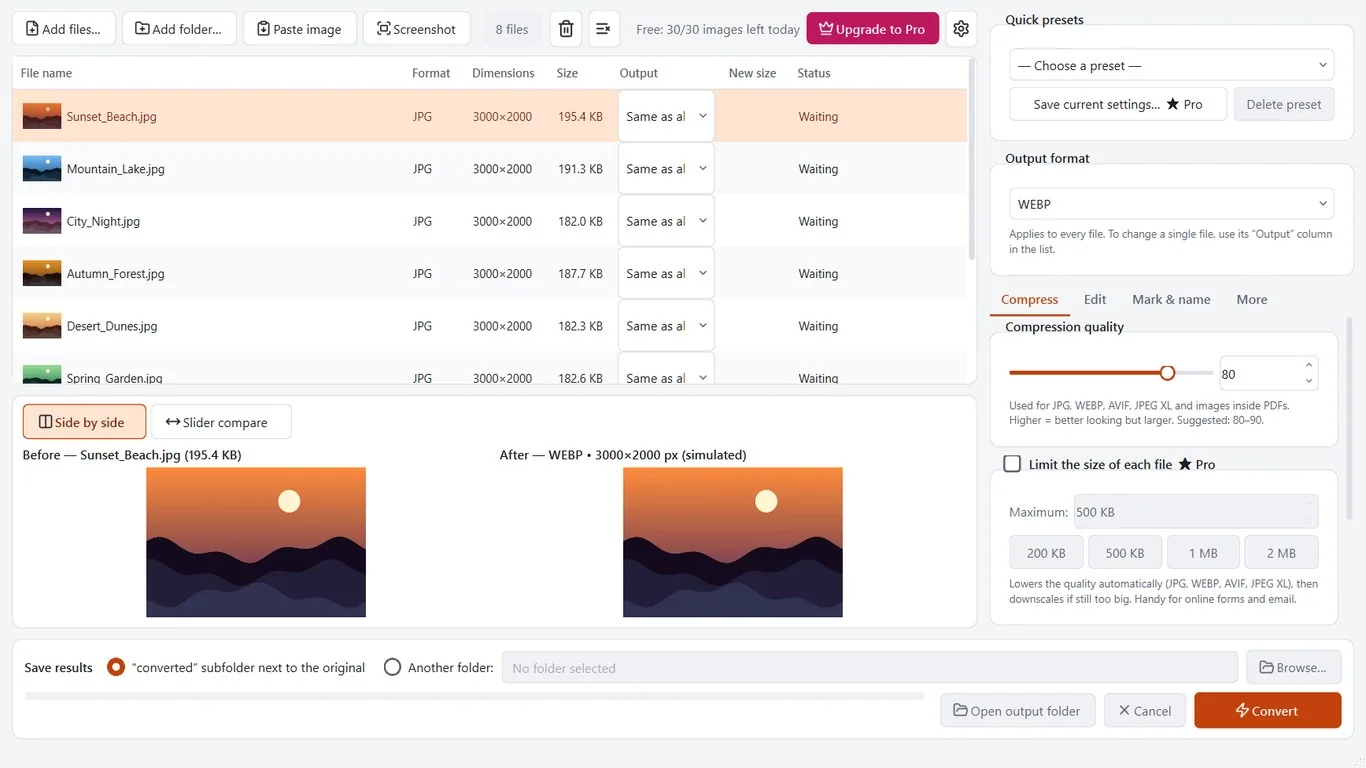
Pick a preset for web, email, ID photos, Facebook or Instagram. The size and quality are set for you.
Preview before you convert
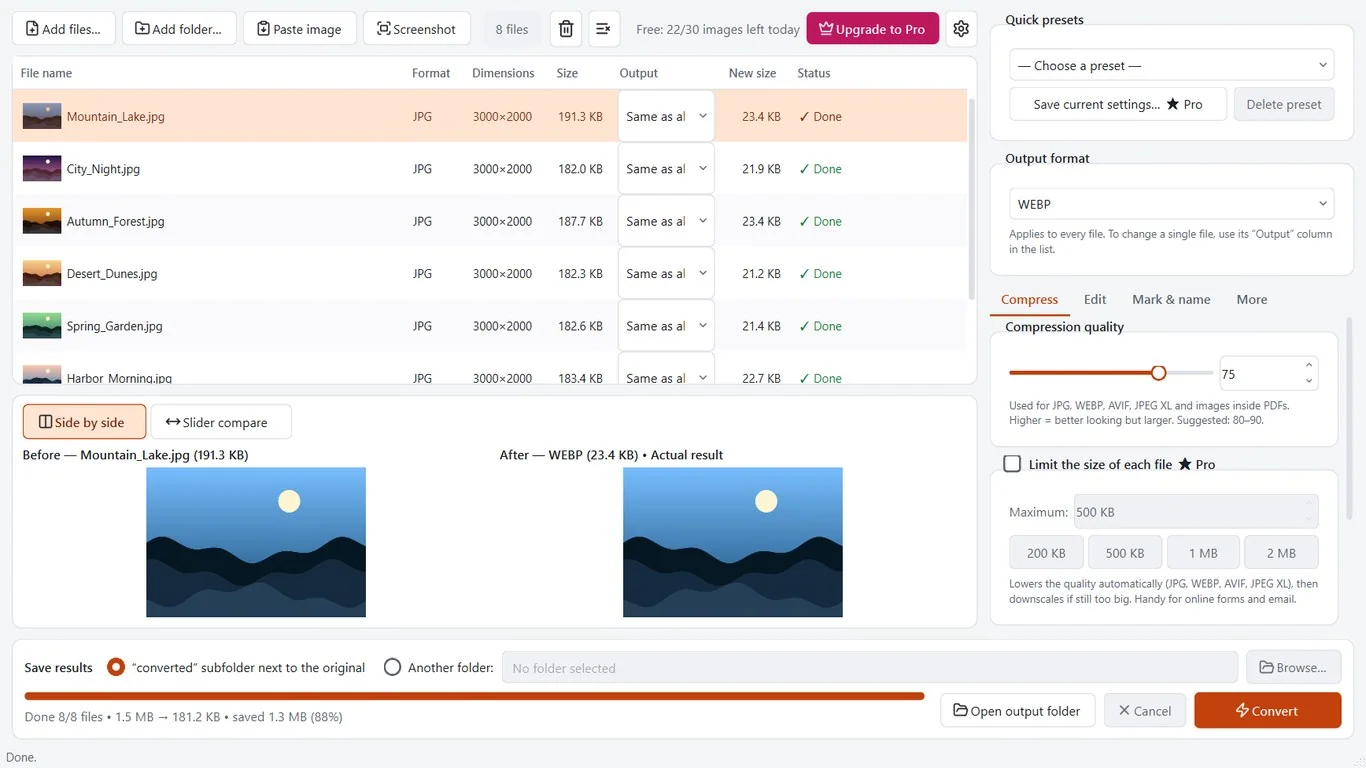
Compare the original and the result side by side or with a slider. See the file size you save.
Easy ways to add photos
Drag and drop files or whole folders, paste from the clipboard, or grab a screenshot. Right-click files in Explorer to convert.
Private and offline
Your photos stay on your PC. No account, no ads, no uploads. Your originals are never overwritten.
How it works
- Get it from the Microsoft Store and open PicForge.
- Drop in photos or folders, then pick a format or preset.
- Click Convert. Results are saved in a new folder next to your originals.
Screenshots
Great for
iPhone photos to JPG
Turn a folder of HEIC photos into JPG so they open anywhere.
Smaller files for email and forms
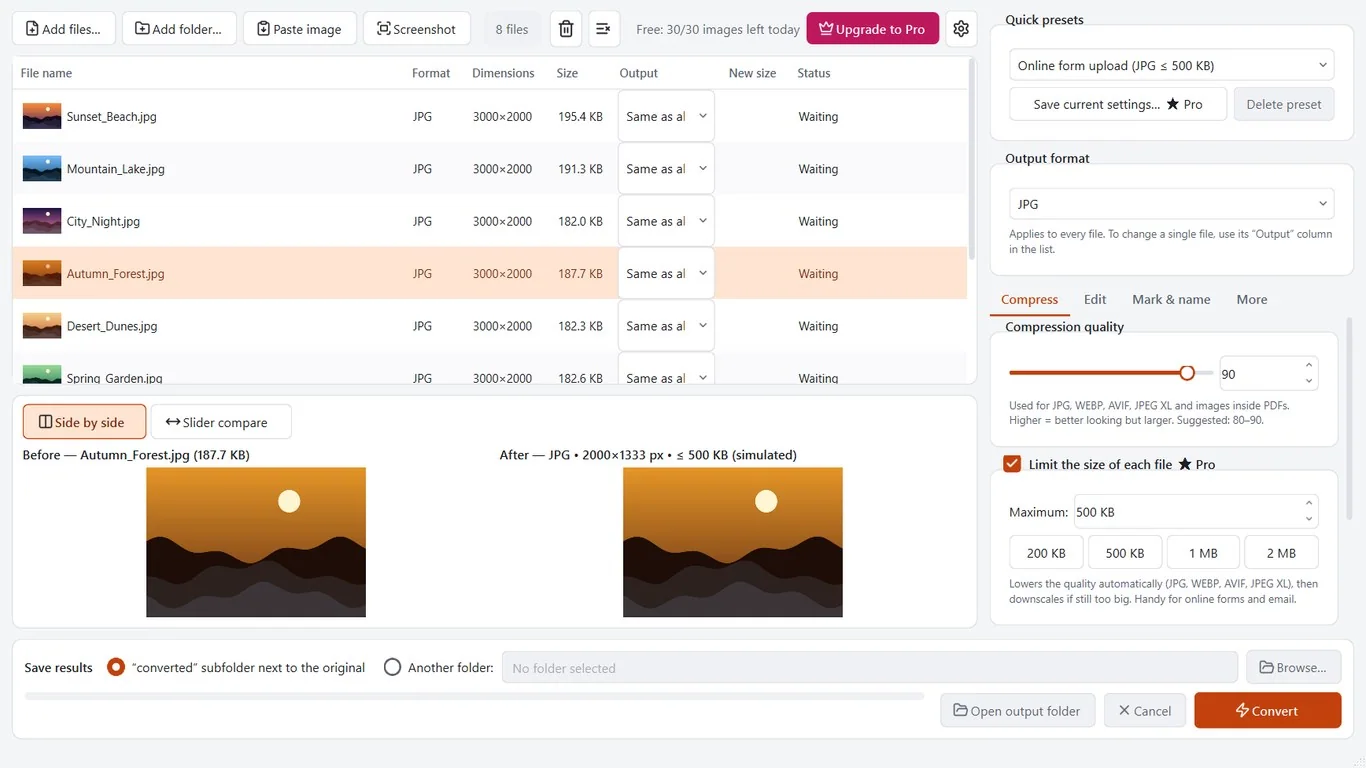
Compress photos to fit upload limits without touching your originals.
Faster websites
Convert images to WEBP or AVIF to make pages lighter.
Camera RAW to shareable files
Export RAW shots from common camera brands to JPG or PNG.
PicForge Pro
- No 30-image daily limit
- Compress to a target file size
- Add text or logo watermarks
- Name files with your own pattern
- Save your own presets
- Convert images to SVG vectors
- Combine many images into one PDF
The free version converts up to 30 images per day.
FAQ
Is PicForge free?
Yes. You can convert up to 30 images per day for free. PicForge Pro is an optional one-time purchase that removes the limit and adds extra tools.
Is it safe? Are my photos uploaded?
No. PicForge works offline and does not upload your photos. It has no ads and needs no account. Your original files are never overwritten.
How do I convert HEIC to JPG in bulk?
Add your HEIC photos or a whole folder, choose JPG as the output, and click Convert. The JPG files are saved in a new folder next to the originals.
Which image formats are supported?
It reads JPG, PNG, WEBP, GIF, BMP, TIFF, ICO, HEIC, AVIF, JPEG XL, SVG, PDF and common camera RAW files. It saves to JPG, PNG, WEBP, AVIF, JXL, GIF, BMP, TIFF, ICO, PDF and SVG.
Can I make photos smaller without losing quality?
You choose the quality level and see a before and after preview with the file size. Resizing and WEBP or AVIF output can cut size a lot.
What do I need to run it?
A Windows PC with the Microsoft Store. The app is available in English and Vietnamese.
Get PicForge from the Microsoft Store